
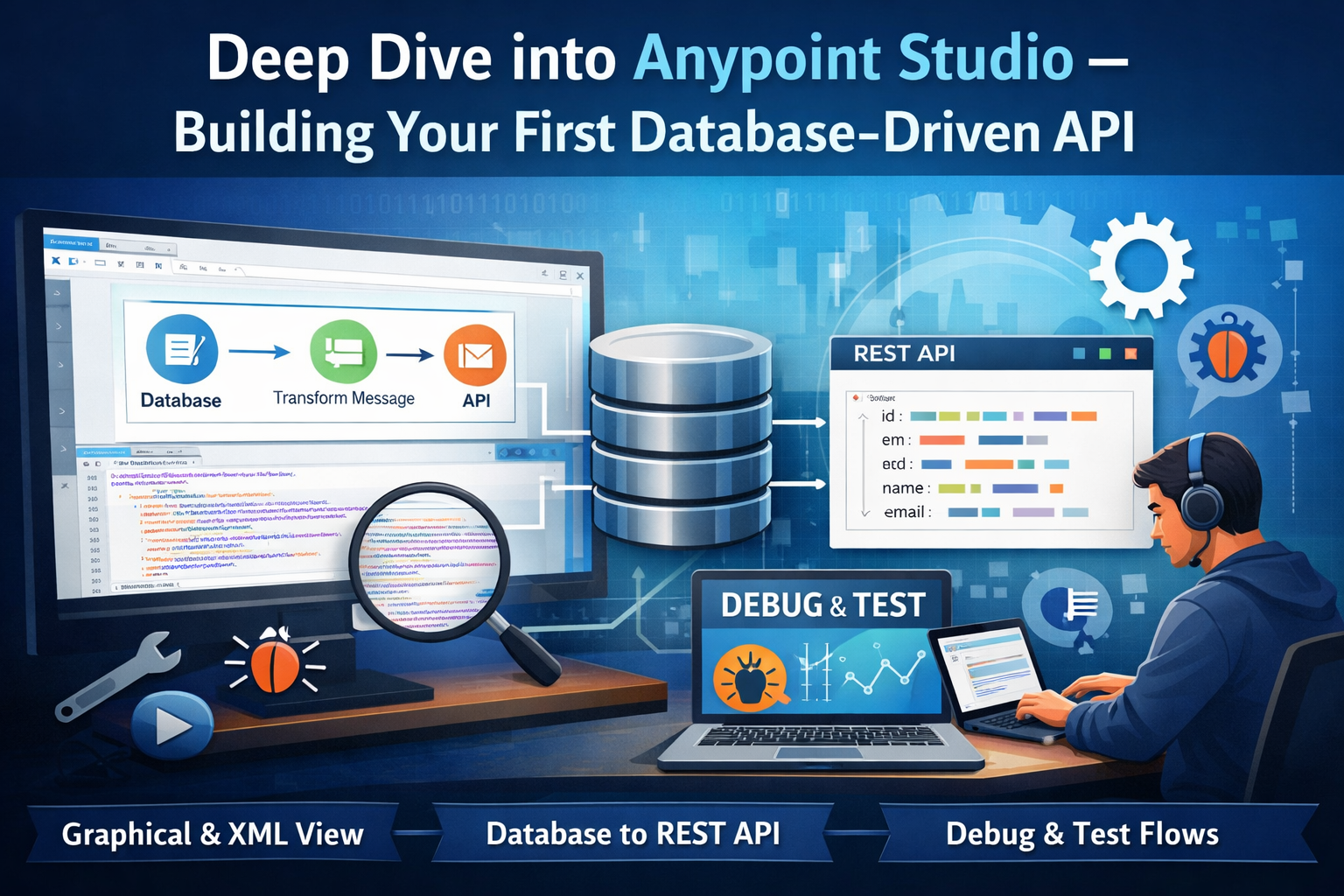
Ch.02-Deep Dive into Anypoint Studio:
Building Your First Database-Driven API
In Chapter 1, we got our feet wet with a “Hello World” API and understood the big picture: integration challenges, Anypoint Platform, and API-led connectivity. Now it’s time to roll up our sleeves and master the tool we’ll use every day: Anypoint Studio.
By the end of this chapter you’ll be able to:
- ▸Navigate every area of the Studio interface like a professional
- ▸Understand the relationship between the graphical canvas and the underlying XML
- ▸Build a realistic Customer Directory API that reads from and writes to a database
- ▸Handle errors gracefully (404 Not Found, 400 Bad Request)
- ▸Debug flows using Loggers, Breakpoints, and DataWeave Preview
1. A Quick Recap
Last time we built this flow:
It was simple but powerful — it demonstrated the core Mule concept: events flowing through components. Now we go much deeper with a production-realistic integration involving a database.
2. Anypoint Studio — A Guided Tour
The Studio workspace has six key areas you’ll use constantly. Let’s cover each quickly:
2.1 Package Explorer (left)
Your project tree. A Mule project follows a standard Maven layout: src/main/mule holds flow XML files, src/main/resources holds properties files and certificates, src/test/mule holds MUnit test flows, and pom.xml is the Maven build config (how connectors are declared as dependencies).
2.2 The Canvas (center)
This is where you design flows. Drag components from the Palette onto the canvas and connect them. Double-click any component to open its properties. The canvas has tabs at the bottom: Message Flow (graphical view), Global Elements (shared configs), and Source (raw XML). All three stay in sync.
2.3 The Mule Palette (right)
Your toolbox, organized by category. Sections include Core (Logger, Set Payload, Transform, Choice, Scatter-Gather), HTTP, Database, File, JMS, Salesforce, and everything else. Use the search bar — type “db:select” and it jumps directly there.
2.4 The Properties Editor (bottom panel)
When you click a component on the canvas, its configuration appears here. This is where you write SQL queries, set paths, pick connection configs, and configure DataWeave. You’ll spend the majority of your development time here.
2.5 The Console
Runtime logs appear here when you run the app. Watch for red errors. Always search the console first when something breaks — it usually tells you exactly which component failed and why.
2.6 Global Elements Tab
At the bottom of the canvas you’ll find the Global Elements tab — this is where shared configs live. A Database Config, an HTTP Listener Config, and a TLS Context are all global elements. Components reference them by name using config-ref. Define once, use everywhere.
3. Under the Hood — The XML Configuration
Every flow you design graphically is stored as XML. Click the Source tab at the bottom of the canvas to see it. Here’s the Hello World XML from Chapter 1 with full Mule 4.6 namespace declarations (verified against the official HTTP Connector 1.10 docs):
XML — hello-world-api.xml (complete, Mule 4.6 LTS)
<?xml version="1.0" encoding="UTF-8"?>
<mule
  xmlns:http="http://www.mulesoft.org/schema/mule/http"
  xmlns="http://www.mulesoft.org/schema/mule/core"
  xmlns:doc="http://www.mulesoft.org/schema/mule/documentation"
  xmlns:xsi="http://www.w3.org/2001/XMLSchema-instance"
  xsi:schemaLocation="...">

  <!-- http:listener-config is a GLOBAL element — lives outside any flow -->
  <http:listener-config
    name="HTTP_Listener_config"
    doc:name="HTTP Listener config">
    <http:listener-connection host="0.0.0.0" port="8081"/>
  </http:listener-config>

  <flow name="hello-world-api-flow">
    <http:listener
      config-ref="HTTP_Listener_config"  <!-- references global element -->
      path="/hello"
      allowedMethods="GET"
      doc:name="GET /hello"/>
    <set-payload
      value='#[%dw 2.0 output application/json ---
        { message: "Hello, " ++ (attributes.queryParams.name default "World") ++ "!" }]'
      mimeType="application/json"
      doc:name="Set Payload"/>
    <logger
      level="INFO"
      message="#[payload]"
      doc:name="Logger"/>
  </flow>
</mule>
Three important things to notice about this XML:
- ▸
http:listener-configis a global element defined outside any flow — it can be reused by any flow in the project - ▸The listener uses
config-ref="HTTP_Listener_config"to link to it - ▸DataWeave lives inside
#[...]— the inline script uses the short form with%dw 2.0 output ... ---
4. Building a Database-Driven Customer API
Let’s build something real: a Customer Directory API — a common enterprise integration that exposes a database table as a REST API. We’ll use an H2 in-memory database so you don’t need to install anything. This same pattern applies to PostgreSQL, MySQL, Oracle, and SQL Server with just a JDBC driver swap.
4.1 The Use Case — What We’re Building
Real scenario: Your company’s HR system stores employee records in a legacy database. The mobile team needs a clean REST API for their onboarding app. The web team needs another variant with more fields. The DBA can’t change the schema. You’ll build the integration layer that abstracts the DB complexity.
| Method | Path | Description | Chapter 3 upgrade |
|---|---|---|---|
GET |
/customers |
All customers, ordered by ID | Add pagination |
GET |
/customers/{id} |
Single customer or 404 | Add error envelope |
POST |
/customers |
Create new customer | Add validation |
PUT |
/customers/{id} |
Update existing customer | Add 404 check |
DELETE |
/customers/{id} |
Delete customer, return 204 | Add 404 check |
4.2 Step 1 — Create the Mule Project
File → New → Mule Project → Name: customer-api → Runtime: Mule 4.6 LTS → Finish.
4.3 Step 2 — Add the Database Connector Dependency
In Studio, open the Mule Palette → click Search in Exchange → search “Database” → click Add. Studio adds the dependency to your pom.xml automatically. You’ll also need to add the H2 driver. Open pom.xml and add inside <dependencies>:
XML — pom.xml (H2 driver + DB connector)
<!-- Database Connector (added automatically by Studio via Exchange) -->
<dependency>
  <groupId>org.mule.connectors</groupId>
  <artifactId>mule-db-connector</artifactId>
  <version>1.14.0</version>
  <classifier>mule-plugin</classifier>
</dependency>

<!-- H2 in-memory database driver (add manually) -->
<dependency>
  <groupId>com.h2database</groupId>
  <artifactId>h2</artifactId>
  <version>2.2.224</version>
</dependency>
4.4 Step 3 — Configure the Database Global Element
In the Global Elements tab → Create → Database Config → set:
- ▸Name:
H2_Config - ▸Connection type: Generic Connection
- ▸URL:
jdbc:h2:mem:customerdb;DB_CLOSE_DELAY=-1;MODE=MySQL - ▸Driver class:
org.h2.Driver - ▸User:
sa· Password: (leave empty) - ▸Click Test Connection — should show “Test connection successful!”
4.5 Step 4 — Initialize the Database on Startup
H2 is empty on start. We’ll use a Scheduler with a very long frequency (effectively runs once) to create the table and seed data when the app starts:
XML — init-database-flow (verified Mule 4.6 DB Connector 1.14 syntax)
<flow name="init-database-flow">

  <!-- Runs at startup (1s delay) then every 24h — effectively once -->
  <scheduler doc:name="Startup Scheduler">
    <scheduling-strategy>
      <fixed-frequency
        frequency="86400"
        timeUnit="SECONDS"
        startDelay="1"/>
    </scheduling-strategy>
  </scheduler>

  <!-- Create table if it doesn't exist -->
  <db:execute-ddl config-ref="H2_Config" doc:name="Create customers table">
    <db:sql></db:sql>
  </db:execute-ddl>

  <!-- Seed sample data (ignores duplicates thanks to MERGE / IF NOT EXISTS logic) -->
  <db:execute-script config-ref="H2_Config" doc:name="Seed data">
    <db:sql></db:sql>
  </db:execute-script>

  <logger level="INFO" message="Database initialized with sample data" doc:name="Log init"/>
</flow>
4.6 Step 5 — Build the API Endpoints
Flow 1 — GET /customers (all customers):
XML — get-all-customers-flow
<flow name="get-all-customers-flow">

  <http:listener
    config-ref="HTTP_Listener_config"
    path="/customers"
    allowedMethods="GET"
    doc:name="GET /customers"/>

  <!-- db:select returns a List<Map<String,Object>> as payload -->
  <db:select config-ref="H2_Config" doc:name="Select all customers">
    <db:sql>SELECT id, name, email, city FROM customers ORDER BY id</db:sql>
  </db:select>

  <!-- Transform Java List → clean JSON array -->
  <ee:transform doc:name="List to JSON">
    <ee:message><ee:set-payload> {
  id:    row.ID,
  name:  row.NAME,
  email: row.EMAIL,
  city:  row.CITY
}]]></ee:set-payload></ee:message>
  </ee:transform>

  <logger level="INFO"
    message="#['GET /customers → ' ++ sizeOf(payload) ++ ' records']"
    doc:name="Log count"/>

</flow>
Flow 2 — GET /customers/{id} (single customer with 404 handling):
XML — get-customer-by-id-flow
<flow name="get-customer-by-id-flow">

  <http:listener
    config-ref="HTTP_Listener_config"
    path="/customers/{id}"
    allowedMethods="GET"
    doc:name="GET /customers/{id}">
    <!-- Use a variable to control the HTTP status code dynamically -->
    <http:response statusCode="#[vars.httpStatus default 200]"/>
  </http:listener>

  <!-- Parameterised query — prevents SQL injection (:id is a named parameter) -->
  <db:select config-ref="H2_Config" doc:name="Select by ID">
    <db:sql>SELECT id, name, email, city FROM customers WHERE id = :id</db:sql>
    <db:input-parameters>#[{ id: attributes.uriParams.id as Number }]</db:input-parameters>
  </db:select>

  <choice doc:name="Customer found?">
    <when expression="#[!isEmpty(payload)]">
      <!-- 200: Transform the first (and only) row into a JSON object -->
      <ee:transform doc:name="200 OK">
        <ee:message><ee:set-payload></ee:set-payload></ee:message>
      </ee:transform>
    </when>
    <otherwise>
      <!-- 404: set httpStatus variable + return error body -->
      <ee:transform doc:name="404 Not Found">
        <ee:message><ee:set-payload></ee:set-payload></ee:message>
        <ee:variables>
          <ee:set-variable variableName="httpStatus">404</ee:set-variable>
        </ee:variables>
      </ee:transform>
    </otherwise>
  </choice>

</flow>
Flow 3 — POST /customers (create new customer):
XML — create-customer-flow
<flow name="create-customer-flow">

  <http:listener
    config-ref="HTTP_Listener_config"
    path="/customers"
    allowedMethods="POST"
    doc:name="POST /customers">
    <http:response statusCode="201"/>  <!-- 201 Created -->
  </http:listener>

  <!-- Save request body before DB insert overwrites payload -->
  <set-variable variableName="requestBody" value="#[payload]"
    doc:name="Save request body"/>

  <!-- autoGenerateKeys=true → payload.generatedKeys[0].ID after insert -->
  <db:insert config-ref="H2_Config"
             autoGenerateKeys="true"
             doc:name="Insert customer">
    <db:sql>INSERT INTO customers (name, email, city)
      VALUES (:name, :email, :city)</db:sql>
    <db:input-parameters>#[{
      name:  vars.requestBody.name,
      email: vars.requestBody.email,
      city:  vars.requestBody.city default null
    }]</db:input-parameters>
  </db:insert>

  <ee:transform doc:name="201 Created response">
    <ee:message><ee:set-payload></ee:set-payload></ee:message>
  </ee:transform>

</flow>
5. Testing Your API
Run the project (right-click → Run As → Mule Application). Watch the console for “Database initialized with sample data”, then test with curl:
curl — Complete test suite
# Get all customers
curl http://localhost:8081/customers
# → [{"id":1,"name":"Alice Dupont","email":"alice@example.com","city":"Paris"},…]

# Get by ID — 200 OK
curl http://localhost:8081/customers/2
# → {"id":2,"name":"Bob Martin","email":"bob@example.com","city":"Lyon"}

# Get by ID — 404 Not Found
curl -sv http://localhost:8081/customers/99
# HTTP/1.1 404 → {"error":"Not Found","message":"No customer found with id = 99"}

# Create new customer — 201 Created
curl -X POST http://localhost:8081/customers \
  -H "Content-Type: application/json" \
  -d '{"name":"Eve Morel","email":"eve@example.com","city":"Nice"}'
# → {"id":4,"name":"Eve Morel","email":"eve@example.com","city":"Nice"}
6. Debugging Like a Professional
XML — Structured debug logging
<!-- After DB call — payload is Java List, use write() to print it -->
<logger level="DEBUG"
  message="#['DB result rows: ' ++ sizeOf(payload) ++ ' | data: ' ++ write(payload,'application/json')]"
  doc:name="Debug DB result"/>

<!-- Log all variables to check state -->
<logger level="DEBUG"
  message="#['All vars: ' ++ write(vars,'application/json')]"
  doc:name="Debug vars"/>

<!-- Log HTTP attributes -->
<logger level="DEBUG"
  message="#['Method: ' ++ attributes.method ++ ' Path: ' ++ attributes.requestPath]"
  doc:name="Debug request"/>
7. Best Practices for Project Organization
These habits separate professional Mule developers from beginners:
| Practice | Why it matters | Example |
|---|---|---|
| Meaningful names | Code is read more than written — you’ll thank yourself at 11pm on-call | get-customer-by-id-flow not Flow1 |
| Global elements for shared configs | Change the DB host in one place, all flows pick it up | One H2_Config, referenced by 5 flows |
| Externalise properties | Same app.xml, different config per environment — no code changes | db.host=${DB_HOST} in config.properties |
| Split flows into multiple XML files | Smaller files = easier Git diffs, faster Studio loading | customers-api.xml, orders-api.xml |
| Parameterized SQL only | String concatenation in SQL = injection vulnerability | WHERE id = :id always |
| Save payload before DB ops | DB connector overwrites payload — lose the request body otherwise | set-variable variableName="requestBody" |
src/main/resources/config.properties with environment-specific values. In Studio: Global Elements → Create → Configuration Properties → file=config.properties. Then reference values anywhere with ${db.host}. In production, inject values via Anypoint Runtime Manager → Properties tab — never hardcode credentials in XML. 🔗 Configuring Properties docs
8. Chapter Summary
- Anypoint Studio has six key areas: Package Explorer, Canvas, Mule Palette, Properties Editor, Console, and Global Elements. Canvas and XML are always in sync.
- The Database Connector returns rows as a
List<Map>payload. Always use named parameters (:id) — never string concatenation in SQL. - The Choice Router drives conditional logic. Set
vars.httpStatusinside branches and reference it withstatusCode="#[vars.httpStatus default 200]"on the HTTP Listener. - Always save the request payload to a variable before any DB operation — the DB connector replaces it with the query result.
- Externalise all environment-specific values (hosts, ports, credentials) into properties files. Reference them with
${property.name}. Inject production values via Runtime Manager.

Leave a Reply