Deep Dive into Anypoint Studio –Building Your First Database-Driven API

 info.nestaconnect@gmail.com
·
March 1, 2026
·
10 min read
info.nestaconnect@gmail.com
·
March 1, 2026
·
10 min read 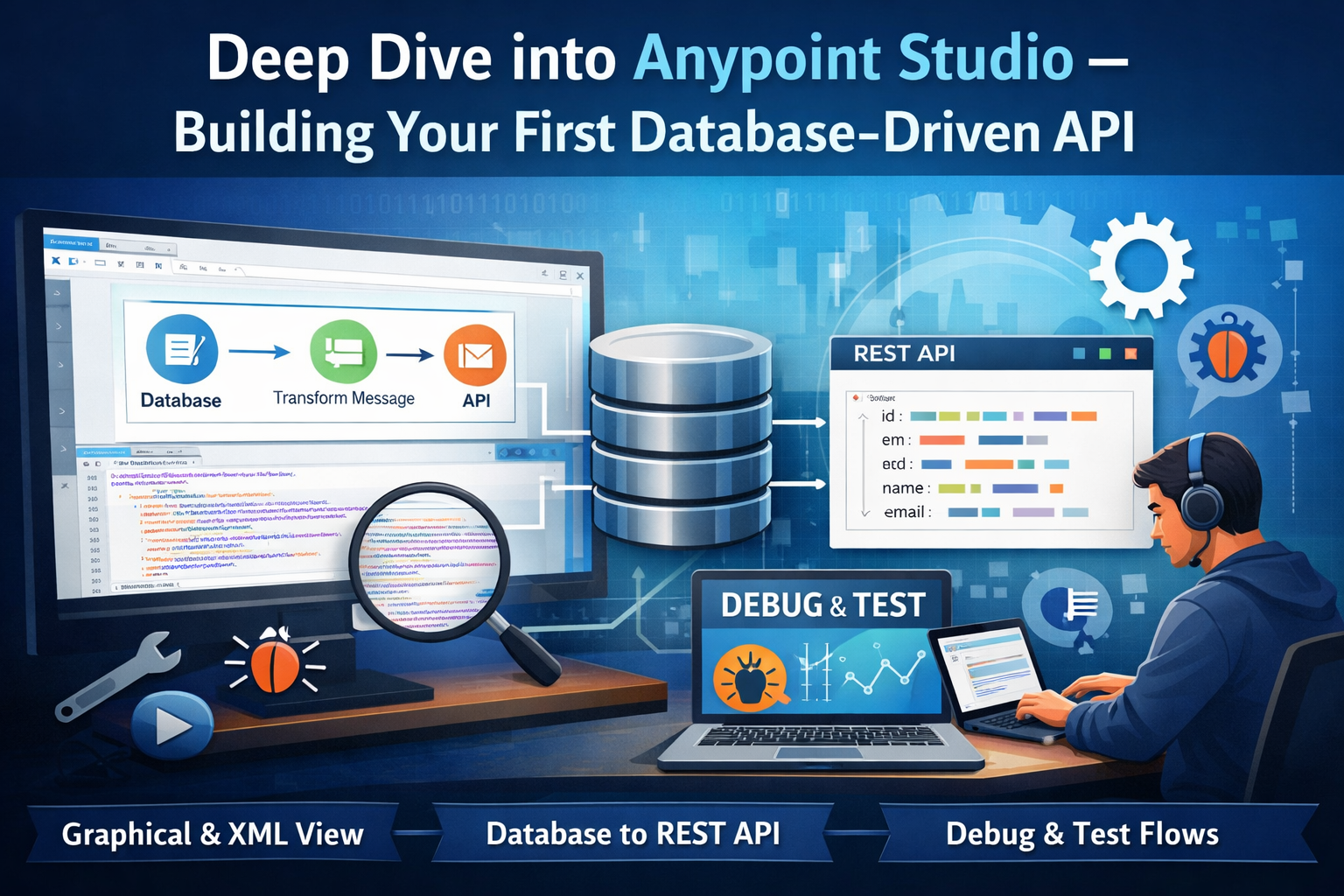
In Chapter 1, we got our feet wet by building a simple “Hello World” API. We saw how Mule flows are constructed graphically and how DataWeave transforms data. Now it’s time to roll up our sleeves and really understand the tool we’ll be using every day: Anypoint Studio.
By the end of this chapter, you will:
Last time we built this flow:
FLOW
DATAWEAVE
It responded to GET /hello?name=... with a JSON greeting. That was a perfect start, but real integrations involve multiple systems, databases, and complex logic. Today we’ll take a big step forward.
When you open Studio, you’re greeted by a workspace. Let’s explore the key areas you’ll use constantly.

This shows your project tree. A typical Mule project contains:
src/main/mule – Your flow XML files.src/main/resources – Properties files, keystores, CSV files, etc.src/test/mule – Test flows (if you write MUnit tests).pom.xml – Maven build configuration (Studio projects are Maven-based).This is where you design flows. You drag components from the palette onto the canvas and connect them. Each component is represented by an icon; double-click to configure its properties. The canvas has a grid and zoom controls (bottom right). You can also switch between multiple flows using tabs at the bottom of the canvas.
This is your toolbox, organized by categories: Listeners (HTTP, Scheduler, File…), Transformations (Set Payload, Transform Message…), Utilities (Logger, Flow Reference…), and installed connectors like Database, HTTP, and Salesforce. Use the search bar at the top to quickly find a component.
When you select a component on the canvas, its configuration options appear here. This is where you set paths, queries, connection details, and more. You’ll spend a lot of time in this panel.
Shows runtime logs, errors, and system output. Always watch the console when you run your app – it’s your first line of defense when something goes wrong.
On the right side (sometimes tabbed with Palette), the Outline shows a tree view of your flow, handy for navigating large flows.
At the bottom of the canvas area, you’ll find a tab named Global Elements. This is where you define reusable configurations (like database connections, HTTP listeners, etc.) that can be referenced by multiple components.
While we design flows graphically, Studio saves everything as XML. Click the Source tab at the bottom of the canvas to see the raw XML. Here’s the XML for our Hello World flow:
XML
<?xml version="1.0" encoding="UTF-8"?>

<mule xmlns:http="http://www.mulesoft.org/schema/mule/http"
      xmlns="http://www.mulesoft.org/schema/mule/core"
      xmlns:doc="http://www.mulesoft.org/schema/mule/documentation"
      xmlns:xsi="http://www.w3.org/2001/XMLSchema-instance"
      xsi:schemaLocation="...">

  <http:listener-config name="HTTP_Listener_config"
    doc:name="HTTP Listener config">
    <http:listener-connection host="0.0.0.0" port="8081" />
  </http:listener-config>

  <flow name="hello-world-api-flow">
    <http:listener
      doc:name="Listener"
      config-ref="HTTP_Listener_config"
      path="/hello"
      allowedMethods="GET"/>
    <set-payload
      value="#[%dw 2.0 output application/json
        --- { message: 'Hello, '
        ++ (attributes.queryParams.name default 'World') ++ '!' }]"
      doc:name="Set Payload" />
    <logger
      level="INFO"
      doc:name="Logger"
      message="#[payload]"/>
  </flow>

</mule>
Notice:
http:listener-config is a global element defined outside the flow.config-ref to reference it.set-payload uses a DataWeave expression inside #[...].Understanding XML helps you debug merge conflicts (if using Git) and occasionally lets you tweak things faster than clicking through dialogs.
Let’s move beyond “Hello World”. We’ll build an API that returns a list of customers from a database. This will introduce: the Database connector, reading global configuration elements, transforming database results (which are lists of maps) into JSON, and error handling basics.
Imagine you have a customers table in a database. We want to expose these endpoints:
| Method | Path | Description |
|---|---|---|
| GET | /customers |
Returns all customers |
| GET | /customers/{id} |
Returns a single customer by ID |
| POST | /customers |
Creates a new customer |
| PUT | /customers/{id} |
Updates an existing customer |
| DELETE | /customers/{id} |
Deletes a customer |
We’ll use an H2 in-memory database for this tutorial so you don’t need to install anything.
File → New → Mule Project → Name: customer-api → Finish.
Create a file named init.sql in src/main/resources:
SQL
CREATE TABLE IF NOT EXISTS customers (
    id    INT          PRIMARY KEY AUTO_INCREMENT,
    name  VARCHAR(100) NOT NULL,
    email VARCHAR(100) NOT NULL,
    city  VARCHAR(100)
);

DELETE FROM customers;

INSERT INTO customers (name, email, city) VALUES
    ('John Doe',    '[email protected]',    'New York'),
    ('Jane Smith',  '[email protected]',  'Los Angeles'),
    ('Bob Johnson', '[email protected]', 'Chicago');
Name: H2_Config, URL: jdbc:h2:mem:customer;DB_CLOSE_DELAY=-1, User: sa, Password: (empty).We’ll create a flow triggered by a Scheduler that runs once on app start:
FLOW
Here is the full init-database-flow XML:
XML
<flow name="init-database-flow">

  <scheduler doc:name="Startup Scheduler">
    <scheduling-strategy>
      <fixed-frequency
        frequency="86400"
        timeUnit="SECONDS"
        startDelay="1" />
    </scheduling-strategy>
  </scheduler>

  <db:execute-ddl config-ref="H2_Config"
    doc:name="Create Table">
    <db:sql><![CDATA[
      CREATE TABLE IF NOT EXISTS customers (
        id    INT PRIMARY KEY AUTO_INCREMENT,
        name  VARCHAR(100) NOT NULL,
        email VARCHAR(100) NOT NULL,
        city  VARCHAR(100)
      )
    ]]></db:sql>
  </db:execute-ddl>

  <db:execute-dml config-ref="H2_Config"
    doc:name="Seed Data">
    <db:sql><![CDATA[
      INSERT INTO customers (name, email, city) VALUES
        ('John Doe',    '[email protected]',    'New York'),
        ('Jane Smith',  '[email protected]',  'Los Angeles'),
        ('Bob Johnson', '[email protected]', 'Chicago')
    ]]></db:sql>
  </db:execute-dml>

  <logger level="INFO"
    message="Database initialized" />

</flow>
Flow 1 – GET /customers (all customers):
XML
<flow name="get-all-customers-flow">

  <http:listener
    config-ref="HTTP_Listener_config"
    path="/customers"
    allowedMethods="GET"
    doc:name="GET /customers" />

  <db:select config-ref="H2_Config"
    doc:name="Select All Customers">
    <db:sql>SELECT id, name, email, city
      FROM customers
      ORDER BY id</db:sql>
  </db:select>

  <!-- Transform Java List<Map> → JSON array -->
  <ee:transform doc:name="Transform to JSON">
    <ee:message><ee:set-payload><![CDATA[
      %dw 2.0
      output application/json
      ---
      payload map (row) -> {
          id:    row.ID,
          name:  row.NAME,
          email: row.EMAIL,
          city:  row.CITY
      }
    ]]></ee:set-payload></ee:message>
  </ee:transform>

  <logger level="INFO"
    message="All customers: #[payload]" />

</flow>
Flow 2 – GET /customers/{id} (single customer):
XML
<flow name="get-customer-by-id-flow">

  <http:listener
    config-ref="HTTP_Listener_config"
    path="/customers/{id}"
    allowedMethods="GET"
    doc:name="GET /customers/{id}">
    <http:response statusCode="#[vars.httpStatus default 200]" />
  </http:listener>

  <!-- Parameterised query – prevents SQL injection -->
  <db:select config-ref="H2_Config"
    doc:name="Select Customer by ID">
    <db:sql>SELECT id, name, email, city
      FROM customers
      WHERE id = :id</db:sql>
    <db:input-parameters>
      #[{ 'id': attributes.uriParams.id as Number }]
    </db:input-parameters>
  </db:select>

  <choice doc:name="Found?">
    <when expression="#[sizeOf(payload) > 0]">
      <ee:transform><ee:message><ee:set-payload><![CDATA[
        %dw 2.0
        output application/json
        var row = payload[0]
        ---
        { id: row.ID, name: row.NAME,
          email: row.EMAIL, city: row.CITY }
      ]]></ee:set-payload></ee:message></ee:transform>
    </when>
    <otherwise>
      <ee:transform><ee:message><ee:set-payload><![CDATA[
        %dw 2.0 output application/json
        --- { error: "Not Found",
              message: "No customer found with id = "
                ++ attributes.uriParams.id }
      ]]></ee:set-payload></ee:message>
        <ee:variables>
          <ee:set-variable variableName="httpStatus">404</ee:set-variable>
        </ee:variables>
      </ee:transform>
    </otherwise>
  </choice>

</flow>
Run the project (right-click → Run As → Mule Application). Wait for the console to show “Database initialized”, then test with curl:
Get all customers:
SHELL
curl http://localhost:8081/customers
JSON
[
  { "id": 1, "name": "John Doe",    "email": "[email protected]",    "city": "New York" },
  { "id": 2, "name": "Jane Smith",  "email": "[email protected]",  "city": "Los Angeles" },
  { "id": 3, "name": "Bob Johnson", "email": "[email protected]", "city": "Chicago" }
]
Get customer by ID:
SHELL
curl http://localhost:8081/customers/2
JSON
{
  "id":    2,
  "name":  "Jane Smith",
  "email": "[email protected]",
  "city":  "Los Angeles"
}
Test 404:
SHELL
curl -sv http://localhost:8081/customers/99
# HTTP/1.1 404
# { "error": "Not Found", "message": "No customer found with id = 99" }
When your flow doesn’t work as expected, here are your best tools:
Sprinkle Logger components with informative messages and #[payload] or #[variables]. They’ll print to the console and help you trace data flow step by step.
Double-click the left margin of a component on the canvas to set a breakpoint. Run the app in Debug mode (click the bug icon). When a message hits that component, Studio pauses and you can inspect the payload, variables, and attributes in the Debug perspective.
If an error occurs (like database connection failure), look at the Console for stack traces. Wrap parts of your flow in a Try scope and add an On Error Propagate / Continue handler to catch errors gracefully and return meaningful HTTP responses.
When writing DataWeave transformations, use the Preview tab in the Transform Message component. Supply sample input and see the output immediately — invaluable for getting complex transforms right without running the full app.
Flow1, use get-customer-by-id.config.properties file for environment-specific values (database URLs, ports) and refer to them with ${property.name}.
In this chapter, we:
You now have a solid understanding of the development environment and have built your first integration involving a database. This is the foundation for everything to come.
Leave a Reply