
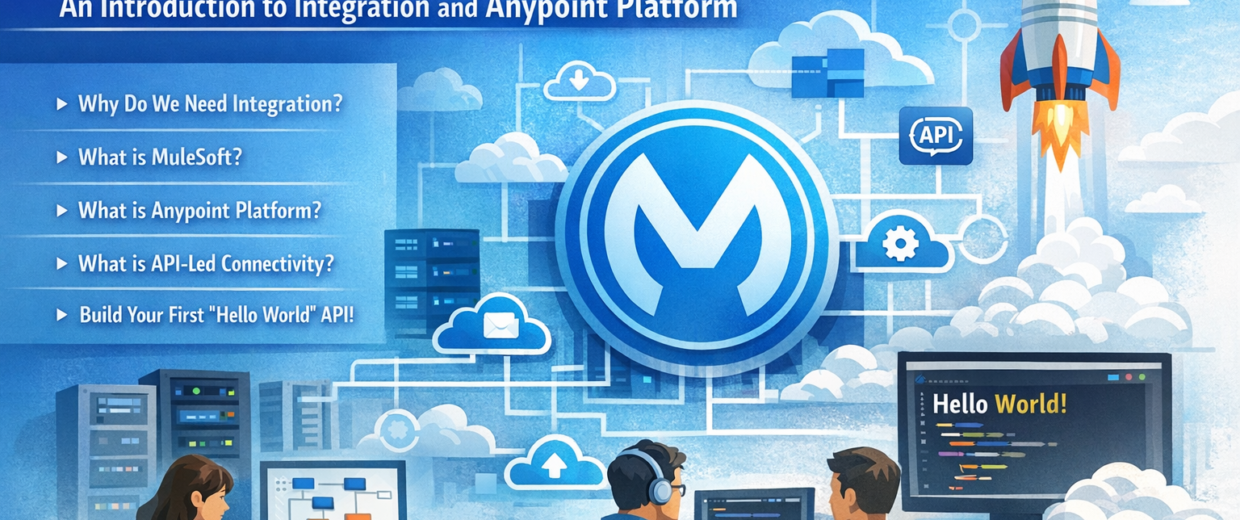
What is MuleSoft? An Introduction toIntegration and Anypoint Platform

Welcome to the first chapter of our journey from zero to hero in MuleSoft! By the end of this series, you’ll be able to design, build, deploy, and manage sophisticated integrations like a seasoned architect. But first, we need to lay the foundation.
In this chapter, we’ll answer the fundamental questions:
- ▸Why do we need integration?
- ▸What is MuleSoft and how does it help?
- ▸What is Anypoint Platform?
- ▸What is API-led connectivity?
And to make it concrete, we’ll actually run your first Mule application – a simple “Hello World” API – so you can see Mule in action from day one.
1. The Integration Challenge
Imagine you work for a fast-growing e-commerce company. You have:
- ▸Salesforce CRM for sales data.
- ▸SAP ERP for inventory and orders.
- ▸A custom MySQL database for user profiles.
- ▸A mobile app and a web store that need real-time data.
Each system speaks its own language (SOAP, REST, databases, files) and lives in different places — on-premises or in the cloud. To give customers a seamless experience, these systems must talk to each other. That’s integration.
Point-to-point connections (connecting each system directly to every other) create a nightmare of spaghetti code. Every change breaks something. Security, monitoring, and scaling become impossible.
2. What is MuleSoft?
MuleSoft provides a platform to connect applications, data, and devices — both in the cloud and on-premises. At its heart is the Mule runtime engine, a lightweight Java-based integration engine that lets you “draw” integrations as flows. These flows move data, transform it, and route it between systems.
With MuleSoft, you don’t write thousands of lines of custom code. Instead, you use pre-built connectors (Salesforce, SAP, HTTP, Database, etc.) and drag-and-drop components in a graphical editor called Anypoint Studio. You can still write code when needed, especially for complex transformations using DataWeave, MuleSoft’s powerful expression language.
3. Anypoint Platform – The Complete Toolkit
MuleSoft is more than just the runtime. It’s a whole platform called Anypoint Platform, which includes everything for the entire API lifecycle:
| Component | Purpose |
|---|---|
| Design Center | Design APIs with RAML or OAS, and create data mappings visually. |
| Exchange | A marketplace to discover and share connectors, templates, and APIs. |
| Anypoint Studio | The Eclipse-based IDE where you build integrations by drawing flows. |
| API Manager | Govern, secure, and monitor your APIs — rate limiting, access policies. |
| Runtime Manager | Deploy and manage your Mule apps to CloudHub, on-prem servers, and more. |
| Anypoint Monitoring | Insights into performance, errors, and business metrics in real time. |
Throughout this series, we’ll touch all of these components, but we start with Anypoint Studio.
4. API-Led Connectivity
MuleSoft promotes an architectural pattern called API-led connectivity. Instead of connecting every system directly, you create three layers of APIs — each with a clear responsibility:
System APIs
Provide a clean interface to underlying systems. A “Salesforce System API” hides the complexity of SOAP calls and exposes a simple REST interface.
Process APIs
Orchestrate and compose data from System APIs. An “Order Process API” combines customer data from Salesforce and inventory from SAP into a unified response.
Experience APIs
Tailor data for specific consumers. A “Mobile Experience API” returns a lightweight JSON for a mobile app, while a “Partner API” returns richer data for B2B partners.
This approach makes integrations reusable, maintainable, and agile. You’ll learn to build all three layers as we progress through the series.
5. Your First Real-World Use Case
Let’s take a tiny piece of that e-commerce puzzle. We need a simple API that returns a friendly greeting to a caller. It’s trivial, but it will teach you how to create, run, and test a Mule flow.
We’ll build an HTTP endpoint that accepts a name query parameter and returns:
JSON Response
{
  "message": "Hello, Maria!"
}
6. Build Your First Mule Application
6.1 Install Anypoint Studio
Download Anypoint Studio from the MuleSoft website (the 30-day trial is free). Install it like any other program. When you launch it, you’ll see a workspace launcher — choose a folder for your projects.
6.2 Create a New Mule Project
- ▸In Studio, go to File → New → Mule Project.
- ▸Name it
hello-world-api. - ▸Leave the default settings and click Finish.
You’ll see a canvas (the flow designer) with a hello-world-api.xml configuration file open.
6.3 Build the Flow
From the Mule Palette on the right, drag these three components onto the canvas:
- ▸HTTP Listener (under Listeners) – This will be our API endpoint.
- ▸Set Payload (under Transformations) – We’ll set the response message.
- ▸Logger (under Utilities) – To see what’s happening in the console.
Connect them in that order:
FLOW
HELLO WORLD
HTTP Listener
→
Set Payload
→
Logger

6.4 Configure the HTTP Listener
Double-click the HTTP Listener component.
- ▸In Connector Configuration, click + to create a new HTTP config. Leave host as
0.0.0.0and port8081. - ▸In the Path field, enter
/hello. - ▸Under Allowed Methods, check
GET.
Your listener now accepts GET requests at http://localhost:8081/hello.
6.5 Set the Payload with DataWeave
Double-click Set Payload. In the Value field, write a DataWeave expression that builds a JSON object using the query parameter name:
DataWeave
Copy
{
  message: "Hello, " ++ (attributes.queryParams.name default "World") ++ "!"
}
Let’s break it down:
- ▸
attributes.queryParams.name— Accesses thenamequery parameter from the HTTP request. - ▸
default "World"— Ifnameis missing, use “World”. - ▸
++— String concatenation operator in DataWeave.
Make sure the MIME Type is set to application/json.
6.6 Add a Logger
Double-click Logger. In Message, enter #[payload]. This prints the final payload to the console whenever the flow runs — great for debugging.
6.7 Run the Application
- ▸Save the file (
Ctrl+S/Cmd+S). - ▸In Package Explorer, right-click your project and choose Run As → Mule Application.
- ▸Watch the console — you should see
Started app 'hello-world-api'.
6.8 Test Your API
Open a browser or a tool like Postman or curl and hit:
HTTP Request
Copy
GET http://localhost:8081/hello?name=Maria
You should receive:
JSON Response
{
  "message": "Hello, Maria!"
}
If you omit the name parameter: http://localhost:8081/hello
JSON Response
{
  "message": "Hello, World!"
}
7. What Just Happened?
Behind the scenes, Mule handled everything. Here’s what each component did:
- ▸The HTTP Listener received the request, extracted the query parameter, and passed a Mule event to the next component.
- ▸The Set Payload component used DataWeave to transform that event into a JSON response.
- ▸The Logger printed the result to the console.
- ▸Mule runtime automatically handled the HTTP response (status 200,
content-type: application/json).
The configuration is stored in XML. If you open hello-world-api.xml in the Source tab, you’ll see:
XML
Copy
<http:listener-config name="HTTP_Listener_config"
  host="0.0.0.0" port="8081" />

<flow name="hello-world-api-flow">
  <http:listener config-ref="HTTP_Listener_config"
    path="/hello" allowedMethods="GET" />

  <set-payload
    value='#[{ message: "Hello, " ++ (attributes.queryParams.name default "World") ++ "!" }]'
    mimeType="application/json" />

  <logger level="INFO" message="#[payload]" />
</flow>
8. Key Takeaways
- MuleSoft is an integration platform that connects applications and data across any environment.
- Anypoint Platform provides tools for the entire API lifecycle — design, build, deploy, manage, monitor.
- API-led connectivity structures integrations into reusable System, Process, and Experience layers.
- You built a working API with just three components in Anypoint Studio.
- Mule applications are event-driven flows that process messages step by step.
Now you have your environment ready and you’ve felt the thrill of a running Mule app. Keep that momentum!
If you have questions or run into issues, drop a comment below. And don’t forget to stop your application when you’re done (click the red square in the console view) to free up the port.
Leave a Reply